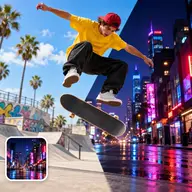
Make variations of an image
Start from one picture and create new versions of it, with an optional description to steer the change, plus output size and quality settings.
Goal
Explore alternatives to a picture you already like: different light, mood or details, while keeping its overall idea.
Before you start
- A starting image.
- Optionally, a short note about what to change.
Steps
- Open Image Variations.
- Under Start with an image, click Upload or choose an image and select a file or pick one from History.
- In Describe your variation (optional), write what should differ. For example: The Prompt from Image button can fill the box with a description taken from your picture, which you can then edit.
Prompt Make it sunset, cinematic lighting - Open Output to set the aspect ratio (Auto keeps the original), resolution and any custom size.
- Open Quality and choose Low, Medium or High.
- Use the counter to choose how many variations to create, for example 4.
- Check the price on Generate and click it.
- Review the results in the gallery and download the ones you like.
What you should get
New pictures related to your original. With an empty description they are looser reinterpretations; with a description they follow your note.
Cost example
With GPT Image 2 at 1K and Low quality, one variation costs about 8 credits, and four cost about 32. Medium quality is about 67 per image.
Tips
- Generate four at Low quality, pick a favourite, then rerun it at higher quality.
- Give one direction at a time: "warmer colours", "night version", "winter".
- Use a variation as the start of a series, then keep one reference for consistency.
Common mistakes
- Asking for a completely different subject. Use Create Image instead.
- Starting with a low-quality or heavily compressed source. Variations inherit its flaws.
- Raising quality before you know which variation you want.